Bonusly Integration Set Up
Set Up a Custom Reward for Brilliant Storefront Gift Cards in Bonusly
The Brilliant x Bonusly Integration uses the Custom Reward option inside of the Company Exclusives feature in Bonusly to issue corresponding gift cards in your Brilliant Storefront to allow employees to redeem their Brilliant gift cards from your existing gift inventory.
From the Admin Dashboard in Bonusly, open the Company dropdown in the left sidebar and select Rewards Catalog.
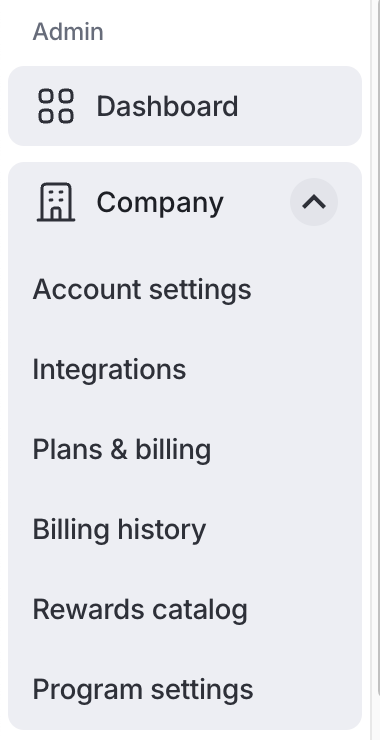
On the Rewards Catalog page, select the option to create new reward.

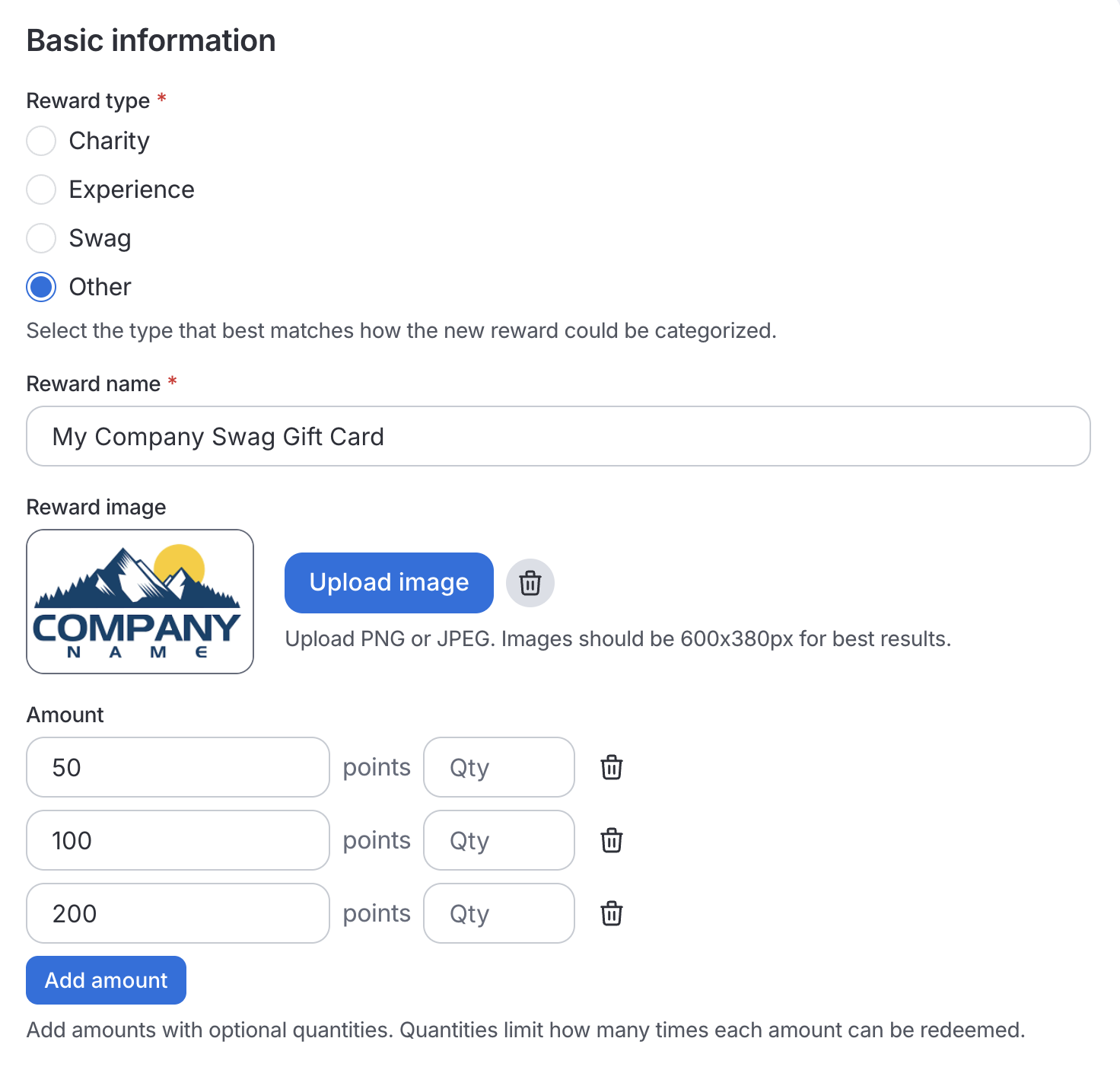
When creating a custom award select 'Other' as the Reward Type. When setting up the Custom Reward, you can give the reward a unique reward name. Your team can choose how many points in Bonusly can be redeemed for a Brilliant gift card of corresponding dollar value. We recommend creating a single Custom Reward with multiple redemption amounts rather than creating multiple separate Custom Rewards with their own distinct redemption amounts. For example, your Custom Reward set up could be named ‘My Company Swag Gift Card’ with redemption options of 50 points, 100 points, 200 points, etc. You will enter how the points correspond to dollar amounts when you configure your connection with Brilliant in a following step.
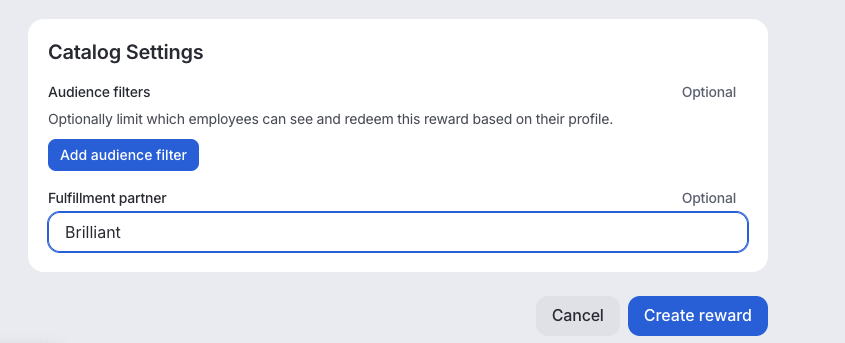
Under the Catalog Settings of the Custom Reward, please also set the Fulfillment Partner to Brilliant. The integration will only search for reward redemptions whose Fulfillment Partner matches this.
After you create your Custom Reward you will be directed to your custom Rewards page and see all your Custom Rewards.

For more information on creating Custom Rewards in Bonusly, see their guide here.
Connect Bonusly and Brilliant
Before connecting Bonusly and Brilliant you will need to have:
A new read/write API Access Token from Bonusly following the steps outlined here.
An inviting user. The inviting user is the user who will show as having sent the gift card in the email to recipients. The inviting user may be any store user with admin level access. We suggest setting up a general group email such as "[email protected]" and adding them as a store user with admin level access to be the inviting user following the steps outlined here. Once you have decided on an inviting user your Brilliant implementation team will help provide the correct User ID in order to complete your configuration.
Configuration Steps
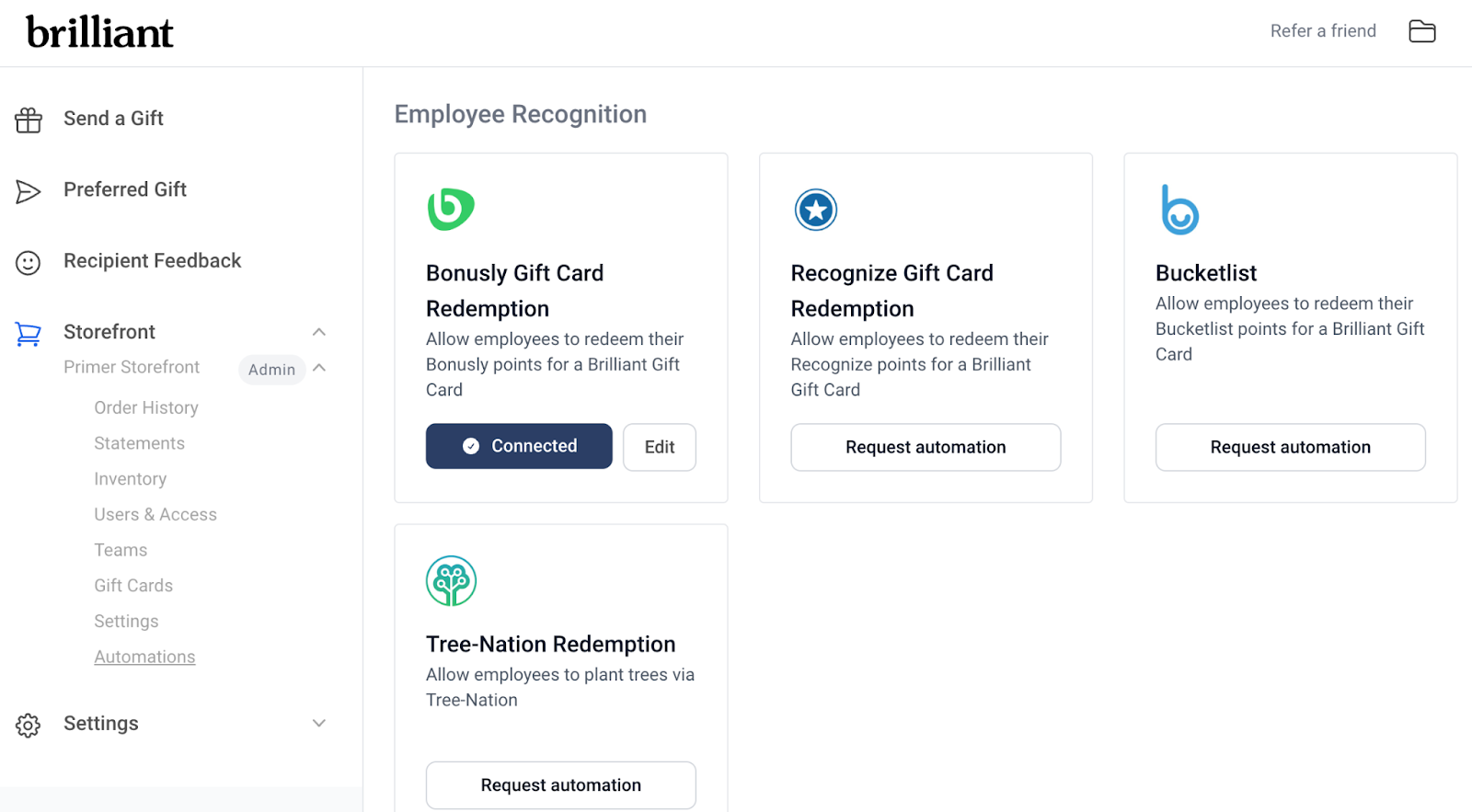
From your automations dashboard, clicking Connect will open the Authentication page. You are able to change your information if needed by clicking the edit button after the integration is connected.
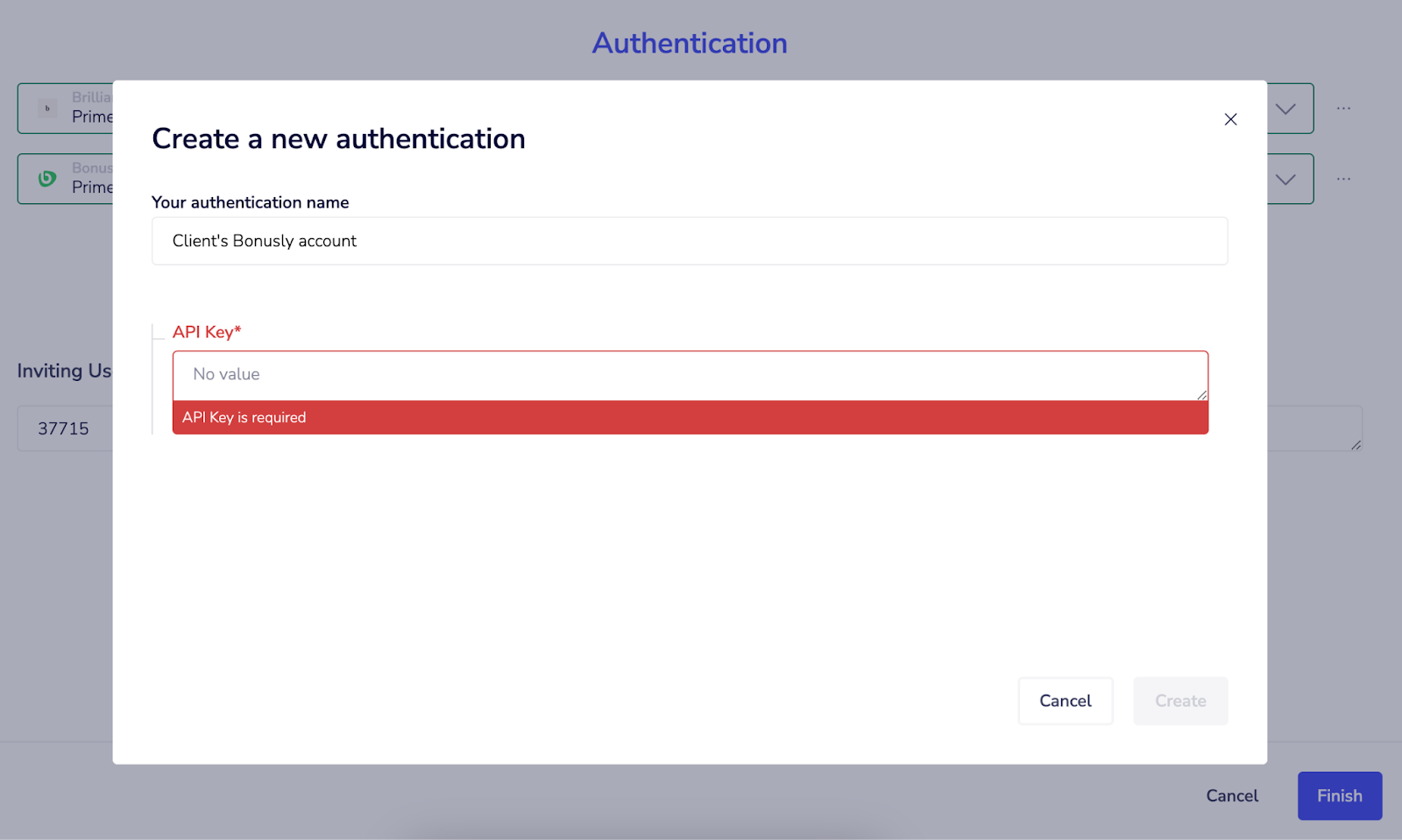
The Brilliant Storefront set up for your integration will default in the first drop down list and you’ll add your Bonusly instance in the second drop down. This will open the ‘Create a new authentication’ window where you can enter the API Access Token into the API Key section.
On the next page you will enter in the Inviting User ID provided by Brilliant after you select your inviting user, the equivalent amount of Bonusly points per USD (for example, if 10 Bonusly points is equal in value to $1 then you would enter in 10 in this field), and the Redemption Search Term which is the exact name of the Custom Reward in your Reward Catalog.

After clicking finish, you’ll now see the Bonusly tile on the Automations page in your Brilliant account show as Connected. The integration is now live!
Marking a Custom Reward as Approved
Brilliant can only fulfill a Bonusly Custom Reward when it is marked as Approved. The integration automatically marks Custom Rewards as approved and fulfilled. If you prefer to have your Bonusly admin manually approve redemptions and mark them as fulfilled we can accommodate that by request. For information on how to approve Custom Rewards in Bonusly, see their help guide here.