Zapier Setup
Requirements
A Brilliant account with API Access and at least one Preferred Gift Campaign
A Zapier account
Set Up Steps
1. Request API Keys:
If this is your first time integrating Brilliant with Zapier, you’ll need to request API keys from your Brilliant Account Manager or by emailing [email protected]. You will only need to input your API keys into Zapier once and then they can be reused across your organization. We'll let you know when your API keys are ready.
Only Enterprise level Storefronts can use our API and Zapier. For information on upgrading your Storefront, email [email protected] or reach out to your Account Manager.
2. Locate API Keys:
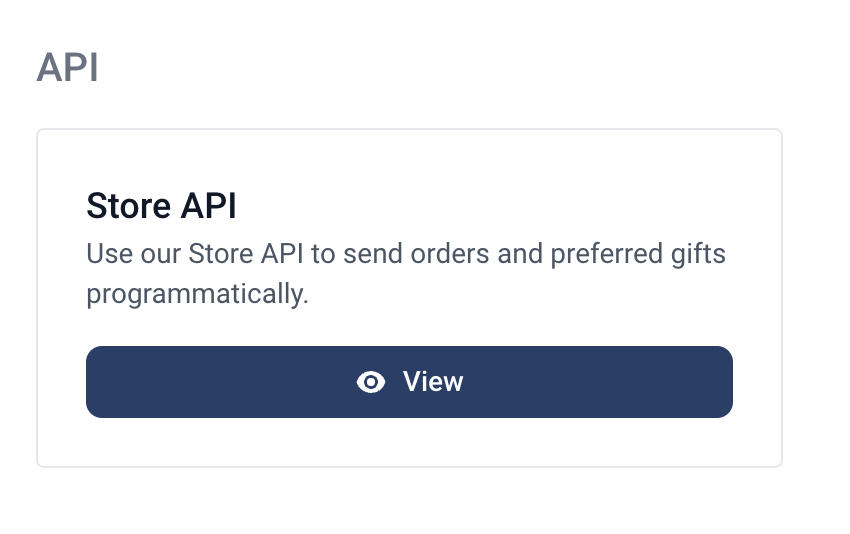
On your Brilliant dashboard, hit the Admin button next to the Store that contains your Gift Campaign to expand the Admin options. Click Integrations. On the Integrations page, find the Store API box and click View to access your API Key and Secret Key.
3. Connect Zapier with Brilliant
When you create your first Zap uses a Brilliant action or trigger, Zapier will prompt you to provide your API Key and Secret Key.
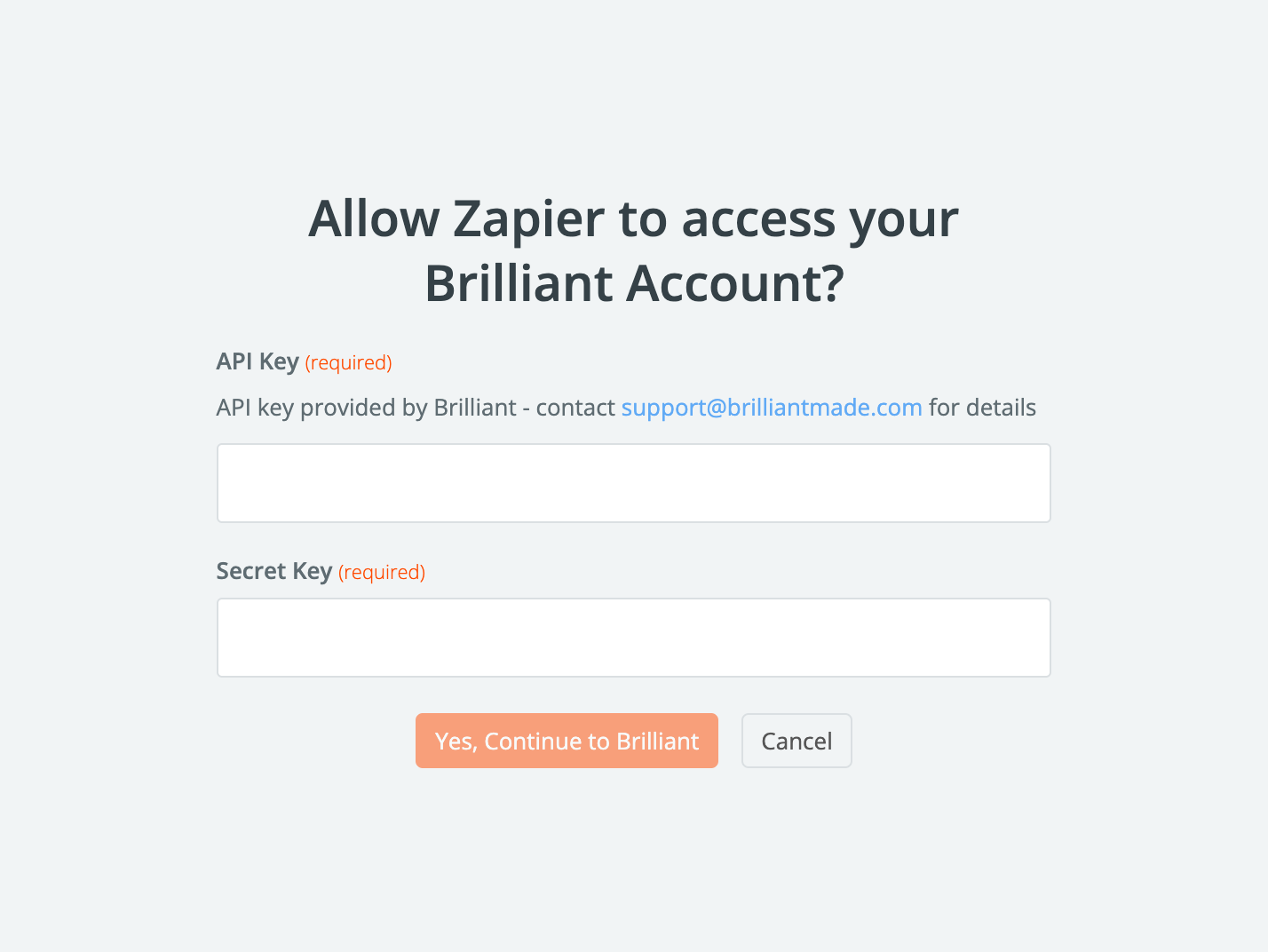
Note that you may have multiple sets of API Keys if you have Preferred Gift Campaigns in different Stores on Brilliant. You'll be able to make multiple connections with Zapier and Zapier will save all of those connections for future use.
Triggers
Brilliant's integration with Zapier currently offers the following Triggers.
Remember, a Trigger causes something else to happen. So Brilliant will let Zapier know when one of these events occurs, and then Zapier will do whatever it is configured to do next.
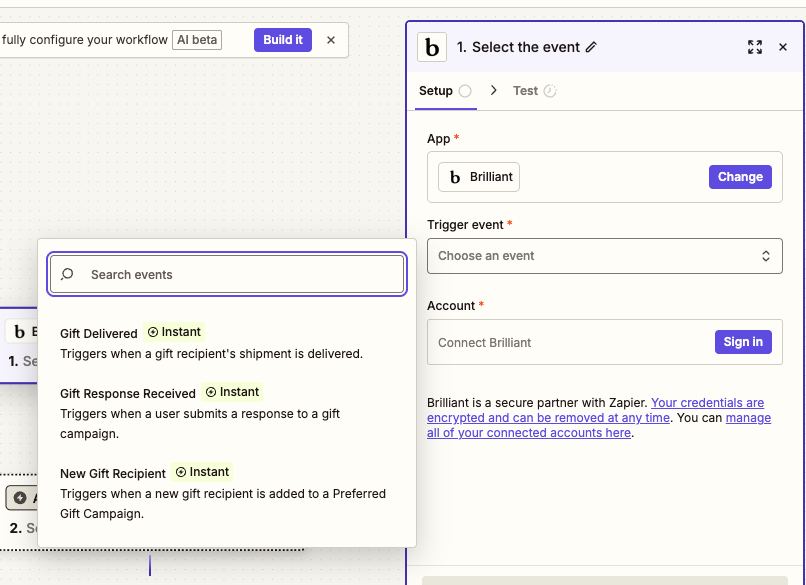
New Gift Recipient
This Trigger occurs when a new recipient is added to your Preferred Gift Campaign on Brilliant. This happens in one of three ways:
You (or the Brilliant team, on your behalf) add someone to the campaign manually
You add someone to the campaign programmatically (for example, using a Zapier Action)
Someone enters a Campaign that is not invite-only and submits a response
Gift Response Received
This Trigger occurs when a recipient responds to a Preferred Gift Campaign on Brilliant. There are two outcomes of a response:
Recipient redeems the gift (most common)
Recipient opts out of the gift (uncommon)
Gift Delivered
This Trigger occurs when a Campaign gift is delivered by the carrier.
Inputs
These triggers each have the following inputs:
Preferred Gift ID | Select the Preferred Gift Campaign you want the trigger to fire on from the dropdown |
Outputs
These triggers each return the following outputs:
ID | Unique identifier of the response |
Name | Name of recipient |
Email of recipient | |
Locked | Whether response is locked or can be edited |
Sent at | When invitation email was sent (if sent) |
Opened at | When invitation email was opened (if opened) |
Visited at | When campaign page was visited (if visited) |
Opted out at | When the recipient opted out of the campaign (if they did) |
Sender name | Name of sender, if provided |
Sender email | Email of sender, if provided |
Status | Status of the response |
Shipping status | Status of the gift shipment |
External ID | Connects record to other app using that app's unique identifier |
Preferred Gift ID | ID of the associated campaign |
Created at | |
Updated at |
Actions
Brilliant's integration with Zapier currently offers the following Actions.
Remember, an Action is something that is triggered by another event. So Zapier will tell Brilliant to do the Action of your choice, based on how you've configured it, after the trigger you've selected has fired.
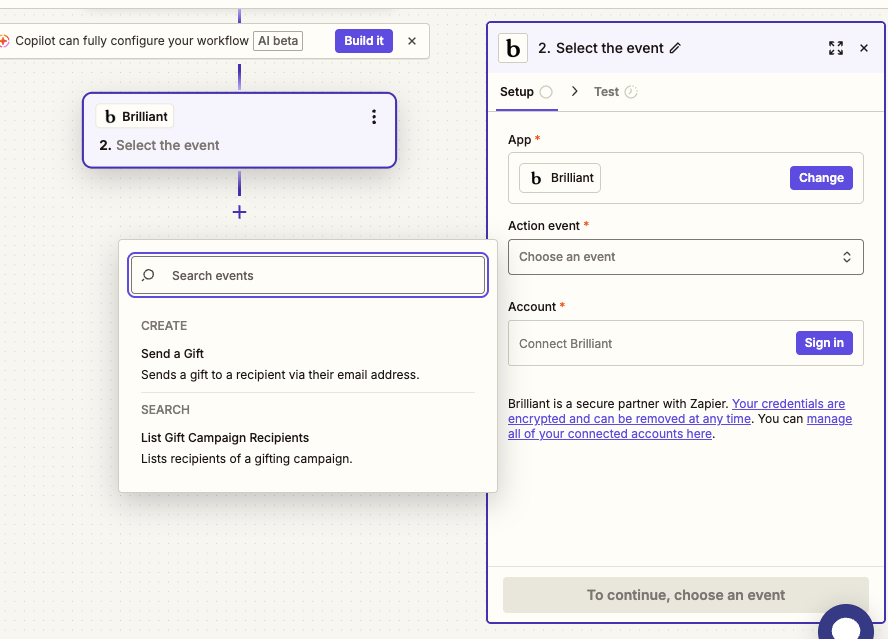
Send a Gift
This action will create a gift recipient in a Preferred Gift Campaign, and invite them to that campaign (if Send Email is selected).
This action allows the following inputs:
Preferred Gift ID | ID of the Preferred Gift Campaign |
Recipient Name (optional) | Name of the recipient |
Recipient Email (optional) | Email of the recipient |
External ID (optional) | Connects record to other app using that app's unique identifier |
Send Email | If selected, email will be sent to recipient inviting them to the campaign. Recipient Email must be provided for email to send. |
This action returns the following outputs:
ID | Unique ID of the gift recipient |
The ID can be used in coordination with the Brilliant Triggers as needed. External ID can also be useful for executing a Trigger after Sending a Gift.
List Gift Campaign Recipients
This action will return recipients in a Preferred Gift Campaign.
This action returns the following inputs:
Preferred Gift ID | ID of the Preferred Gift Campaign |
It provides the following outputs:
ID | Unique identifier of the response |
Name | Name of recipient |
Email of recipient | |
Locked | Whether response is locked or can be edited |
Sent at | When invitation email was sent (if sent) |
Opened at | When invitation email was opened (if opened) |
Visited at | When campaign page was visited (if visited) |
Opted out at | When the recipient opted out of the campaign (if they did) |
Sender name | Name of sender, if provided |
Sender email | Email of sender, if provided |
Status | Status of the response |
Shipping status | Status of the gift shipment |
External ID | Connects record to other app using that app's unique identifier |
Preferred Gift ID | ID of the associated campaign |
Created at | |
Updated at |