HubSpot Campaign Setup
This guide assumes you have already communicated with Brilliant to enable a HubSpot integration for your account.
How it Works
The HubSpot integration is intended to automate the process of gifting to Contacts from a Segment in your HubSpot account (which can be added as an Asset to a Marketing Campaign). The integration will check in timed intervals if there has been any new Contacts added to the Segment you provide, and if so will add the new Contacts to a Brilliant Preferred Gift Campaign. Once they are added to the Preferred Gift Campaign, they will be sent a gift redemption link that they can use to input gift preference and address information.
Connect Brilliant
Once Brilliant has enabled the HubSpot integration for your account, you can connect HubSpot to Brilliant by following the steps below:
Login to Brilliant using your email address and password.
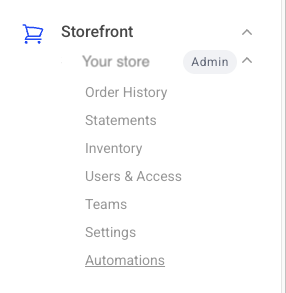
On the lefthand side of the page, navigate to the Automations page of the store you wish to connect the automation to via Storefront -> Your Store to Connect -> Automations.
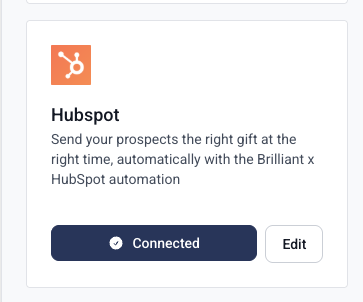
Find the HubSpot integration and click Connect. From here, you will be brought to a new tab where you can configure and provide authentication for the integration. After you connect you are able to go back into the configuration with the edit button to update any information if needed.
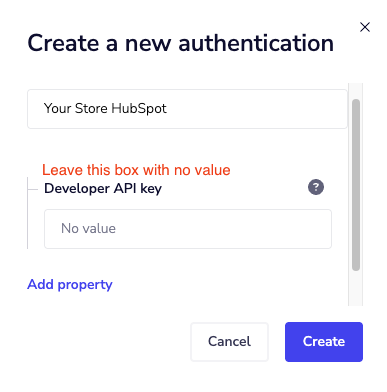
You will be asked for your account information for HubSpot.
When adding your HubSpot account, you will see a field for a Developer API Key. You can leave this field blank, and click Create.
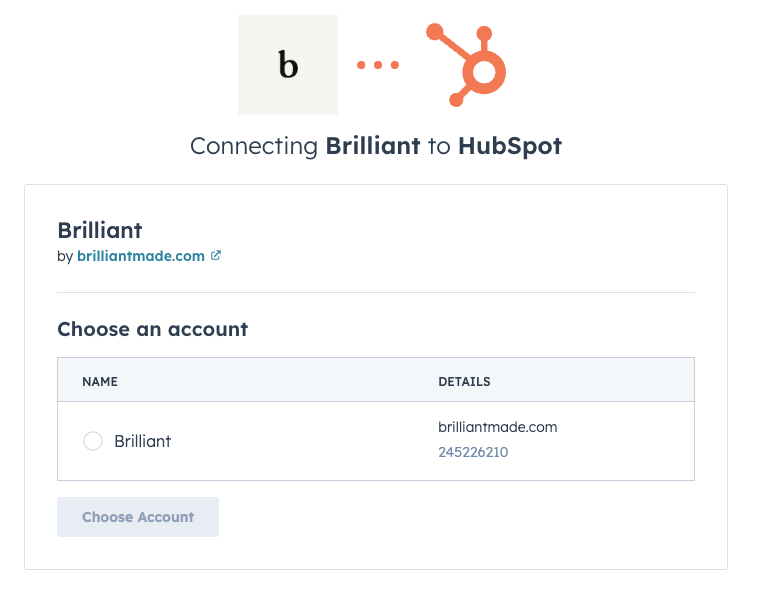
This will bring you to a page where you can provide your account information via an OAuth connection. The OAuth connection screen will prompt you for which HubSpot account you would like to use. After completing the HubSpot authentication process, click Next.
You will then be asked for some configuration values for the integration:
Preferred Gift: This is the Brilliant Preferred Gift Campaign you want to add HubSpot Contacts to.
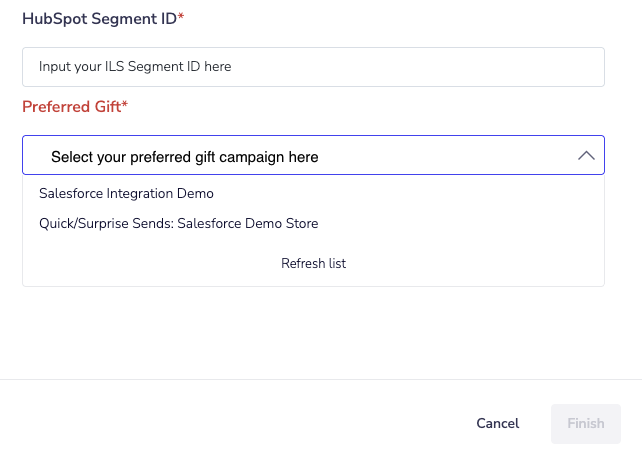
HubSpot Segment ID: This is the ID of the HubSpot Segment you wish to automate gifting from.
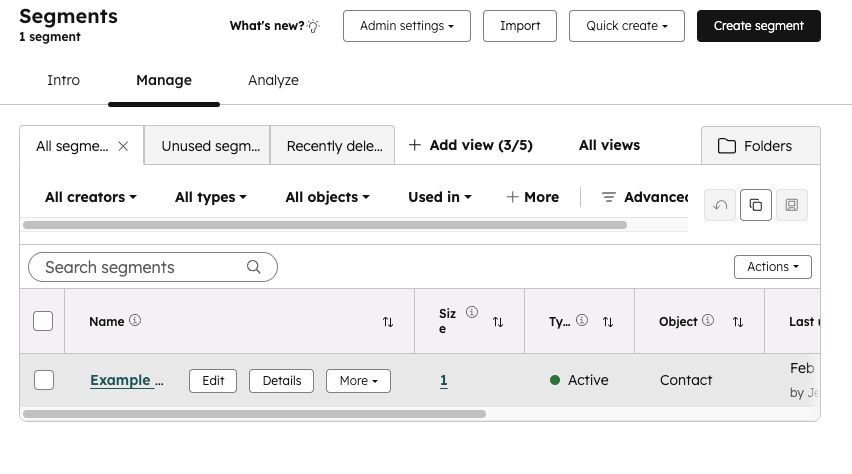
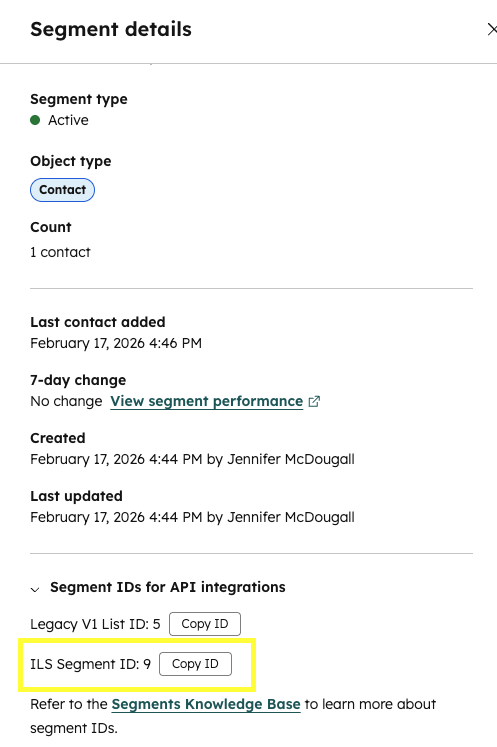
To get the ID: Go to CRM > Segments in your HubSpot portal. Hover over the segment you want to use and click Details. In the right-hand panel, on the Details tab, you’ll see the ILS Segment ID. Copy this ID and input it into the configuration value for the HubSpot Segment ID.
Click Finish. Your integration setup is now complete!