Send a Gift: Surprise Sends
From the Send a Gift link on the left hand navigation in your dashboard, one of the options you can select is Surprise Sends. Surprise Sends allows users to select gift inventory from an existing Storefront to send a gift directly to a recipient without alerting them.
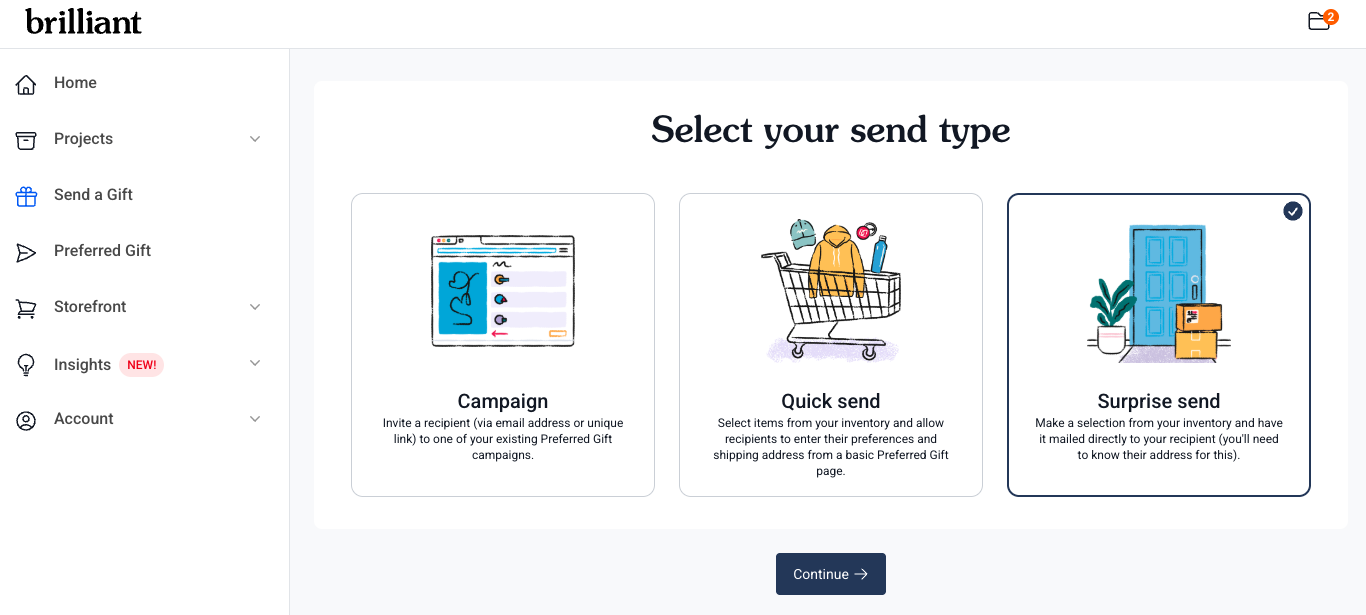
Your Brilliant admin must have the Send a Gift workflow enabled as a feature for one or more Storefronts you have access to in order for you to see this feature. The Send a Gift workflow is only available for Pro and Enterprise tier Storefronts. Reach out to your Account Manager or [email protected] to learn more about enabling this feature.
After selecting Surprise Sends and clicking Continue from the Select your send type page, you'll be taken to the Select your store step. This drop down menu is a list of all Storefronts the logged in user has access to that has Send a Gift workflow enabled as a feature.
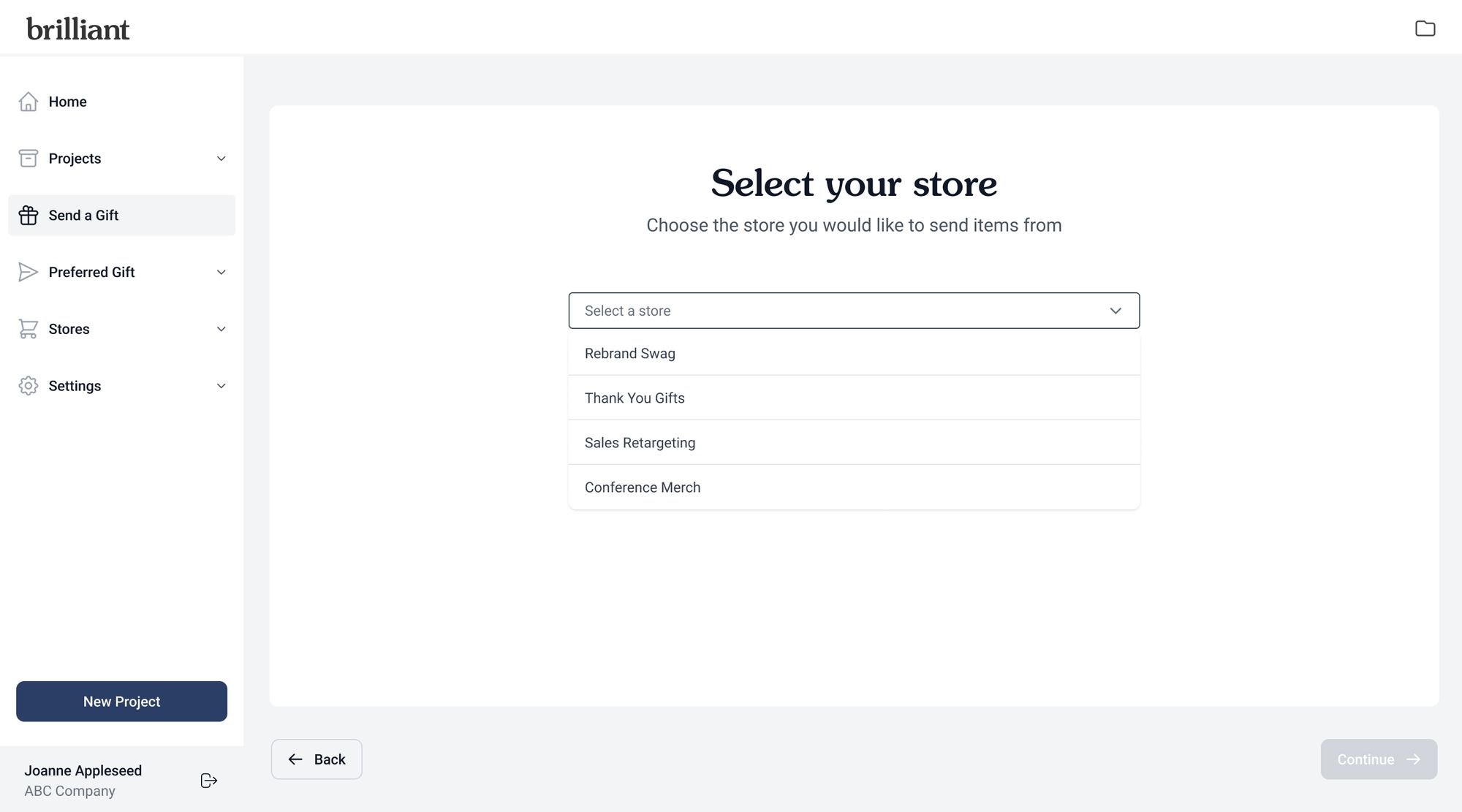
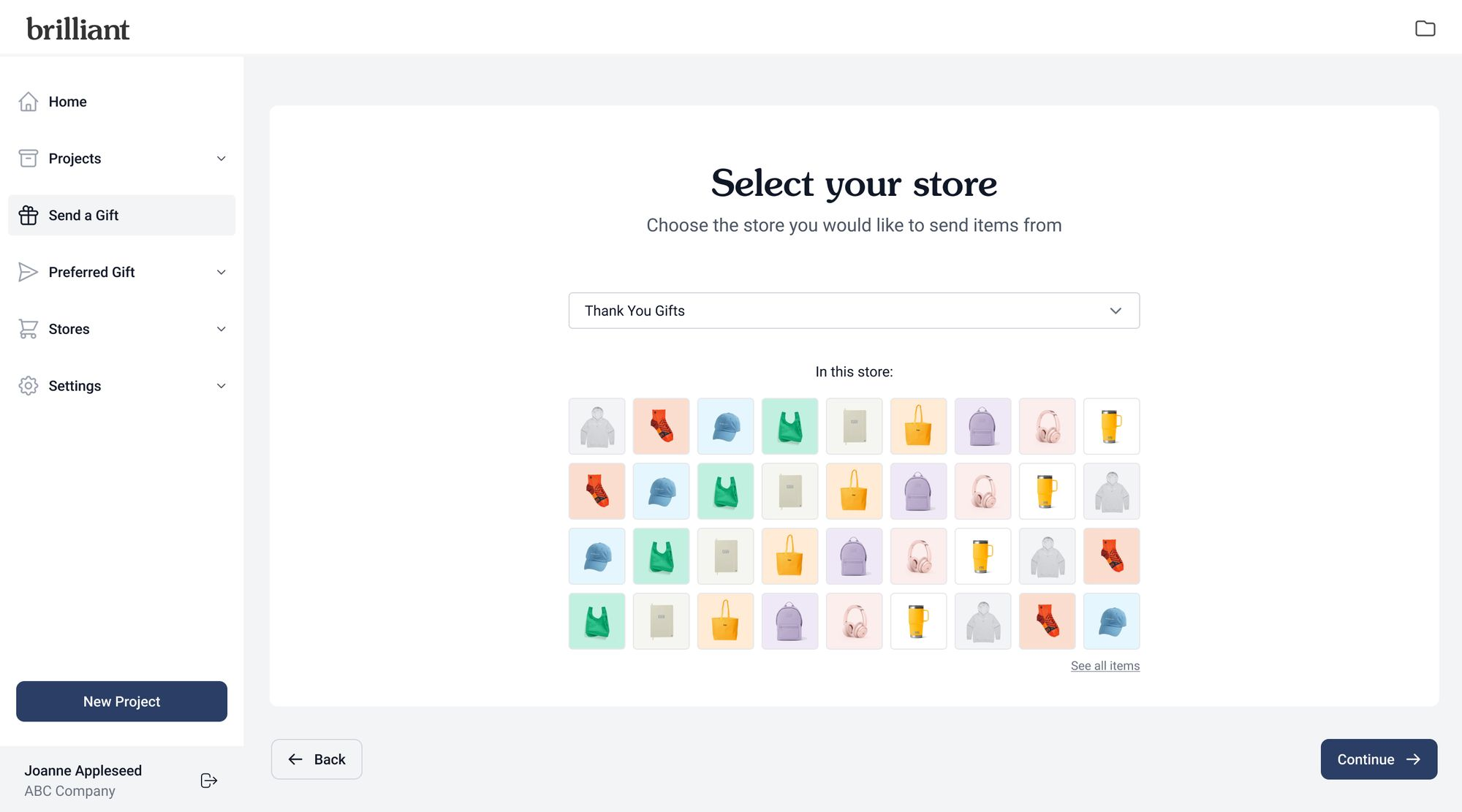
After selecting a Storefront from the Select your store list, you can see a quick preview of the inventory in that store before clicking Continue to move to the next step.
After clicking Continue from the Select your store step, you will be taken to the Select products step where can view and select from inventory that is available to you based on your Team level access to products controlled by your Brilliant admin. If this Storefront is using our Budgets feature, you'll see your Available store budget at the top of the page.
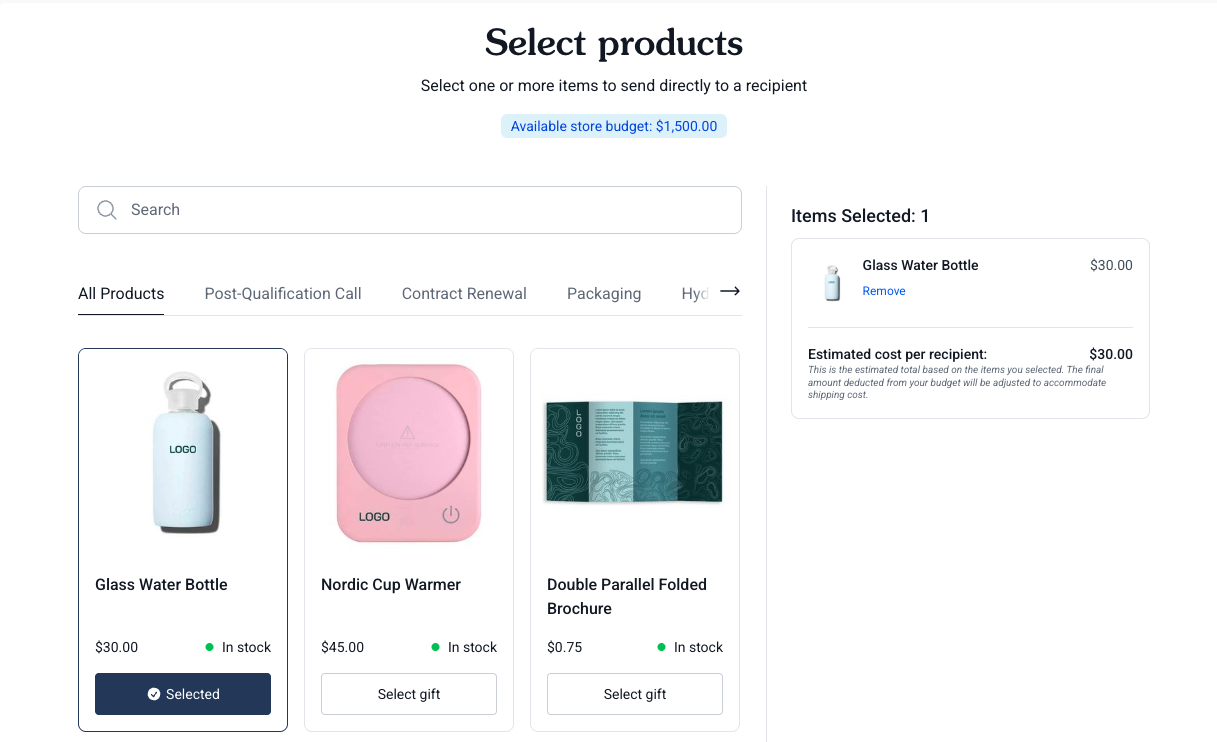
Each product shows the following information in its card:
Product Name
Variant information (colors, sizes, etc.)
Price
Number In Stock - this is the total count of inventory available across variants like sizes and colors. You will not be allowed to select Out of Stock items.
Clicking on a product image will open the product detail pop up to show details on variant information and size guides where applicable.
Note - we don't recommend sized apparel for Surprise Sends unless you are bulk sending multiple options to an event or site, or if you are very aware of the recipient's size.
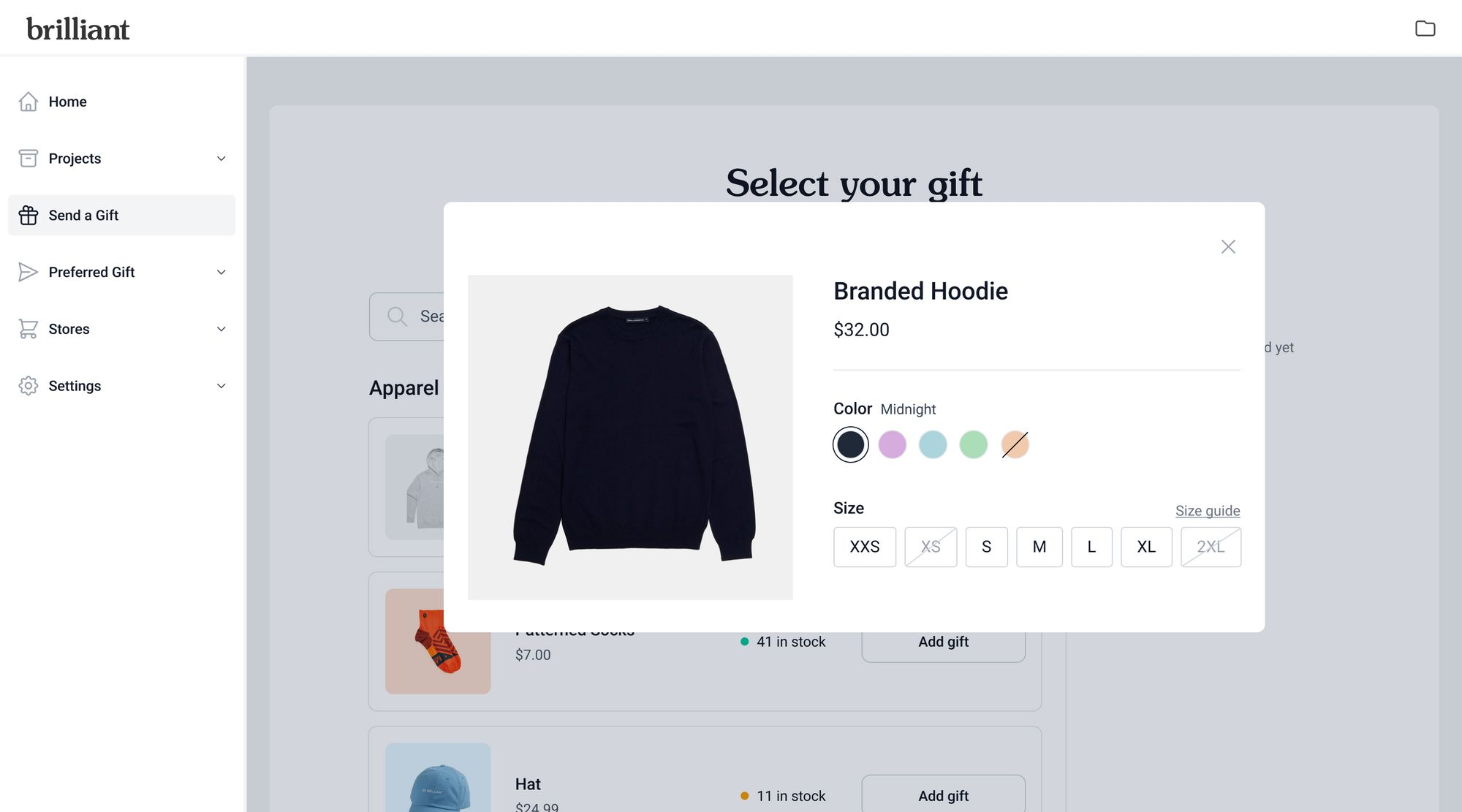
Because Surprise Sends are sent directly to the recipient without informing them, your only option is to select gifts on behalf of the recipient that they will receive. If you'd like to give your recipient options to select from, use the Quick Sends option instead.
After selecting your products and clicking Continue, you'll be taken to the Send details page.
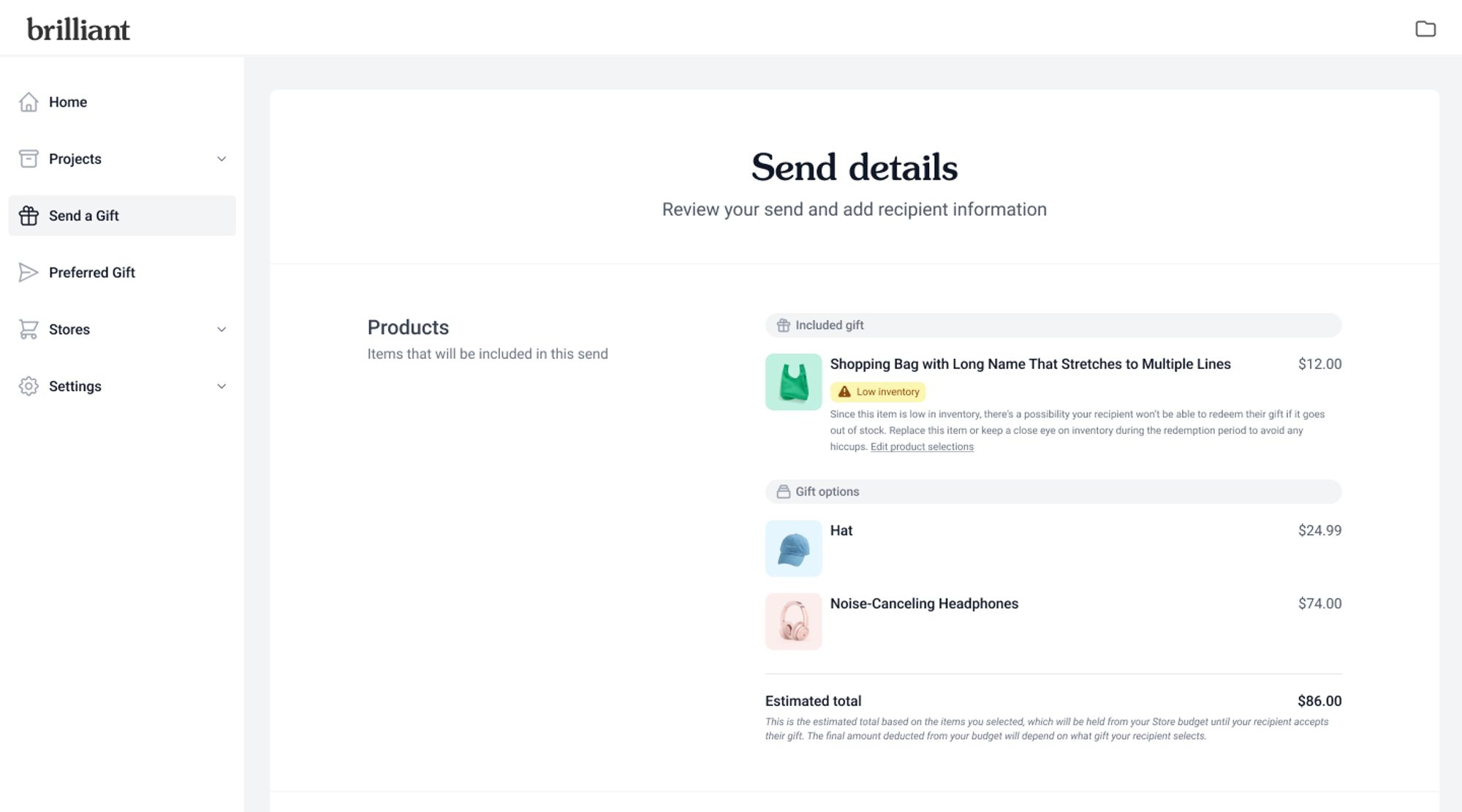
The Products section will summarize the gift selections from the previous step, including an Estimated cost per recipient. We will also notify you if inventory has gone out of stock since you selected it on the previous step.
The Sender Details section will auto populate as the logged in user but can be changed if you are sending on someone else's behalf.
The Invitation type defaults to Email, which will send the gift redemption email directly to the recipient. There is also the option to select a Link which will allow you to copy and paste a unique URL into your own email or other communication method to the recipient. You can only send this link to one recipient. It cannot be used as a generic link to share to multiple recipients.
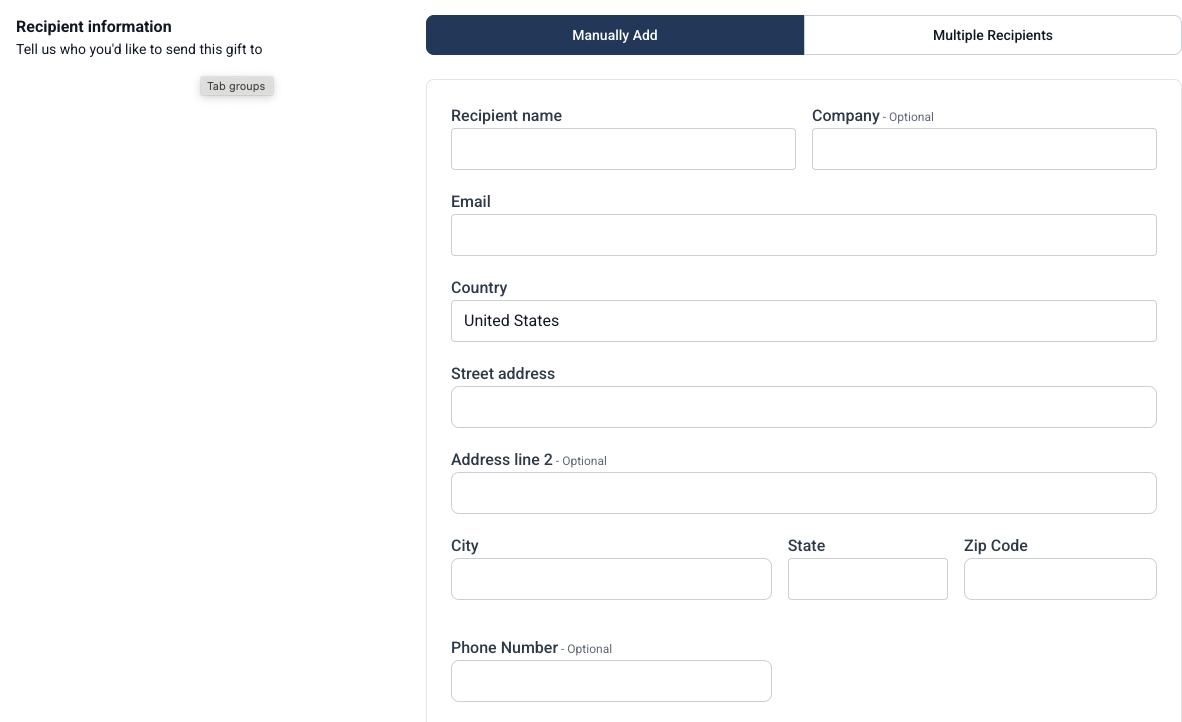
The Recipient Information will default to Single Recipient but you will also have the option to bulk upload Multiple Recipients.
For Multiple Recipient sends, you can use our downloadable .csv template to populate a file with multiple names and email addresses and upload that file via the Chose file button. Multiple Recipient sends must use the Email option for sending gifts to recipients.
For Single Recipient sends, you'll enter the recipient's delivery address. If you do not know their delivery address, use our Quick Sends workflow to allow them to enter the address themselves.
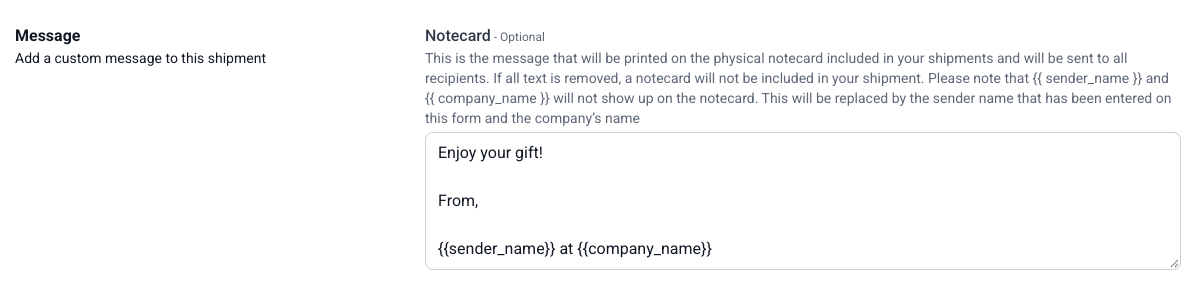
In the Message section, you will also have the option to customize the Notecard that will be placed in the package sent to your recipient. Your Account Manager can set up a default Notecard message based on your preferences.
Clicking Review Your Send from the Send Details page will take you to the Review Your Send page that will let you double check your Products selected, Recipients added, and custom Notecard Messages before sending your gift.
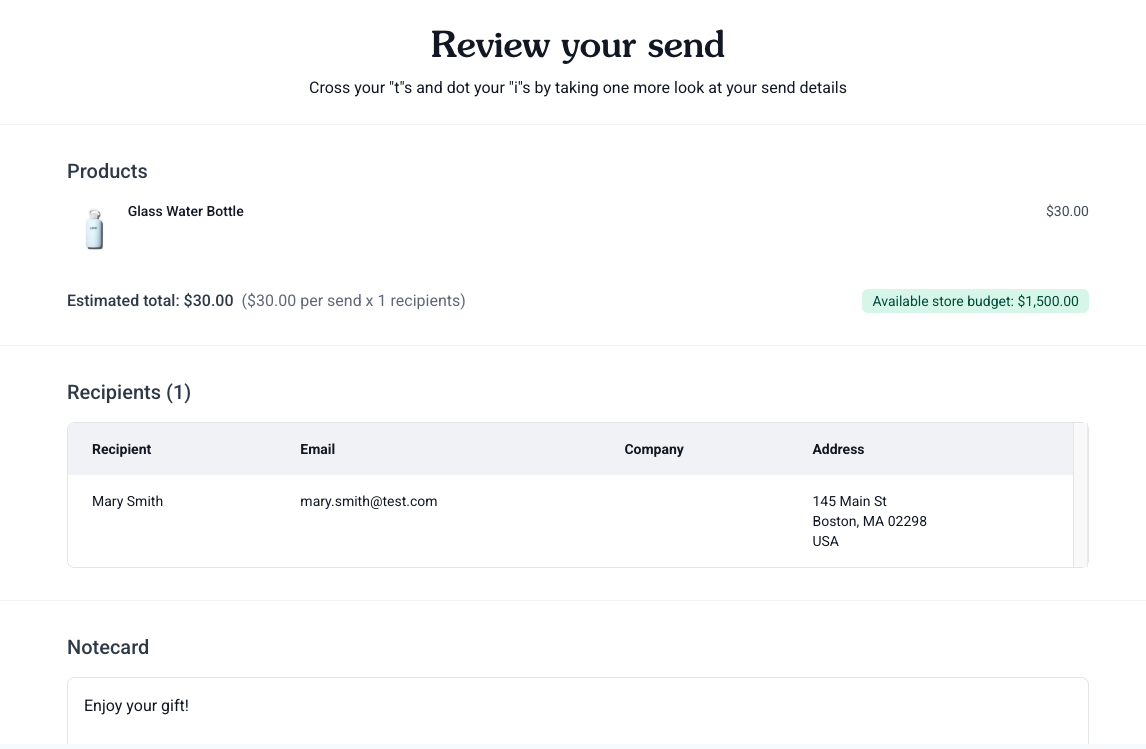
Clicking Send Gift at the bottom right side of the page will take you to the confirmation page.
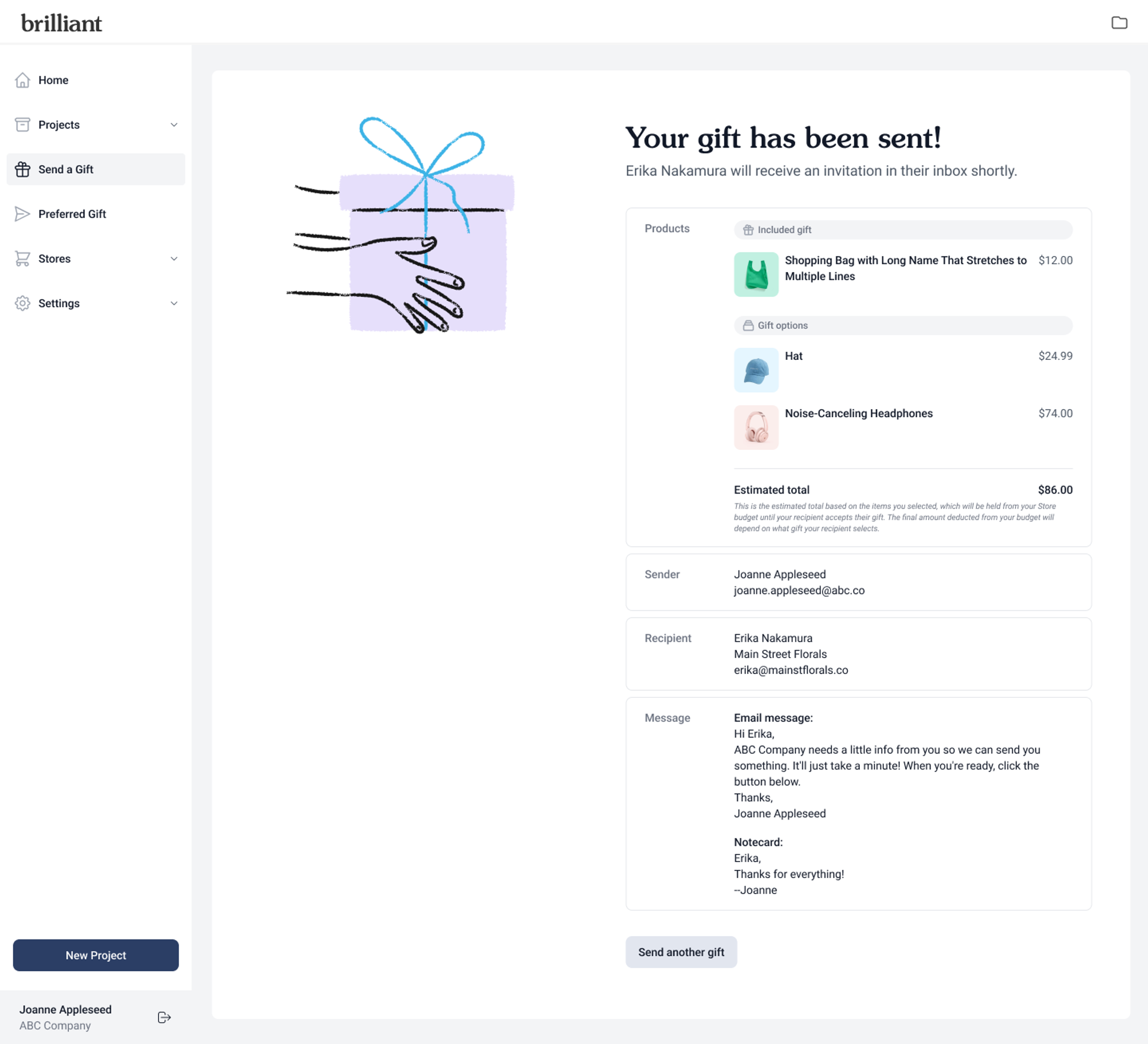
Want to check the status of any of your sends? Click Preferred Gift on the left hand side navigation, then select the Campaign you added the recipient to. Admins will see all recipients added while Store Users will only see sends they have sent to recipients. From here you can view both the Invitation and Shipment statuses for your all of your sends, as well as Resend Emails or Cancel Sends for un-redeemed gift sends.