Microsoft Dynamics 365
You can connect your Dynamics instance with Brilliant in order to sync data between the two systems. This guide assumes you have already communicated with Brilliant to discuss your use case and set up a Dynamics automation for your account.
In order to integrate your Dynamics account with Brilliant, you must first set up your Dynamics through registering an app and creating an application user. Your Dynamics user must have admin permissions in order to use these set up instructions. You will need to provide the following to Brilliant so take note of them as you move through the set up steps:
org URL
tenant ID
client ID
client secret
Go to Microsoft Entra ID -> App registrations -> New registration.
Name the registration. For example “Brilliant Integration” as a single-tenant with no redirect URI
From the Overview page, copy Application (client) ID and Directory (tenant) ID.
In Certificates & Secrets - New Client Secret. Copy the secret value and store it securely.
From Power Platform Admin Center -> select your environment -> Settings -> Security -> Users -> Application Users.
After you select new application user, paste in the client ID from above.
Assign or create a Security Role with the permissions provided by Brilliant. These will depend on your use case. Please note there is a filter on this page so ensure you have it set to 'show all tables'.
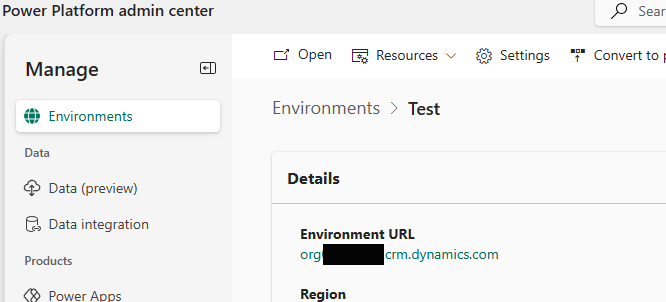
Find your org url
If you do not know your org url you can find it in the Power Platform admin center under Environments
Connect Brilliant
After you have followed the steps above to setup your report, you are ready to connect with Brilliant by following the steps below:
Login to Brilliant using your email address and password.
On the lefthand side of the page, navigate to the Automations page of the store you wish to connect the automation to via Storefront -> Your Store to Connect -> Automations.
Find the Dynamics automation you requested from Brilliant and click Connect. From here, you will be brought to a new tab.
In the authentication screen:
For Brilliant, the account will be added automatically for you.
Enter in your Dynamics credentials from the above steps.
Click Finish to configure the automation.