Oracle Cloud HCM
This guide assumes you have already communicated with Brilliant to set up a Oracle Cloud HCM automation for your account.
Oracle Cloud Set Up
From an account with Administrator access to your company’s Oracle Cloud service find your REST Server URL from your Oracle Cloud service welcome email.
Create an Oracle integration user under Account Management, click Users > Add > Add User
Ensure the the user has the following roles:
ORA_HRC_HUMAN_CAPITAL_MANAGEMENT_INTEGRATION_SPECIALIST_JOB
ORA_HRC_HUMAN_CAPITAL_MANAGEMENT_APPLICATION_ADMINISTRATOR_JOB
Note the user name and password of the integration user as you will need it in a following step.
Connect Brilliant
After we have enabled the Oracle Cloud HCM automation for your account, your Brilliant team will reach out to let you know you're ready for the final leg of your Oracle Cloud HCM automation setup. You can now integrate with Brilliant by following the steps below:
Login to Brilliant using your email address and password.
On the lefthand side of the page, navigate to the Automations page of the store you wish to connect the automation to via Storefront -> Your Store to Connect -> Automations.
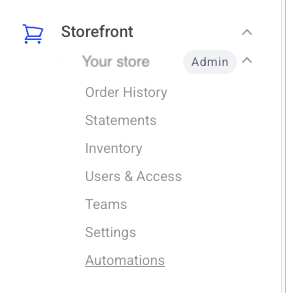
Find the Oracle Cloud HCM automation you requested from Brilliant and click "Connect". From here, you will be brought to a new tab where you can provide authentication and configure the automation.
You will be asked for your account information for Oracle Cloud HCM . Please enter your integration system user credentials, including the username, password, and REST Server URL. You can update your credentials through your dashboard by clicking the edit button or reach out to Brilliant for assistance.