Greenhouse
This guide assumes you have already communicated with Brilliant to set up a Greenhouse automation for your account.
Create Greenhouse API Credentials
To create API credentials, click the Configure icon on your navigation bar, then click Dev Center on the left.

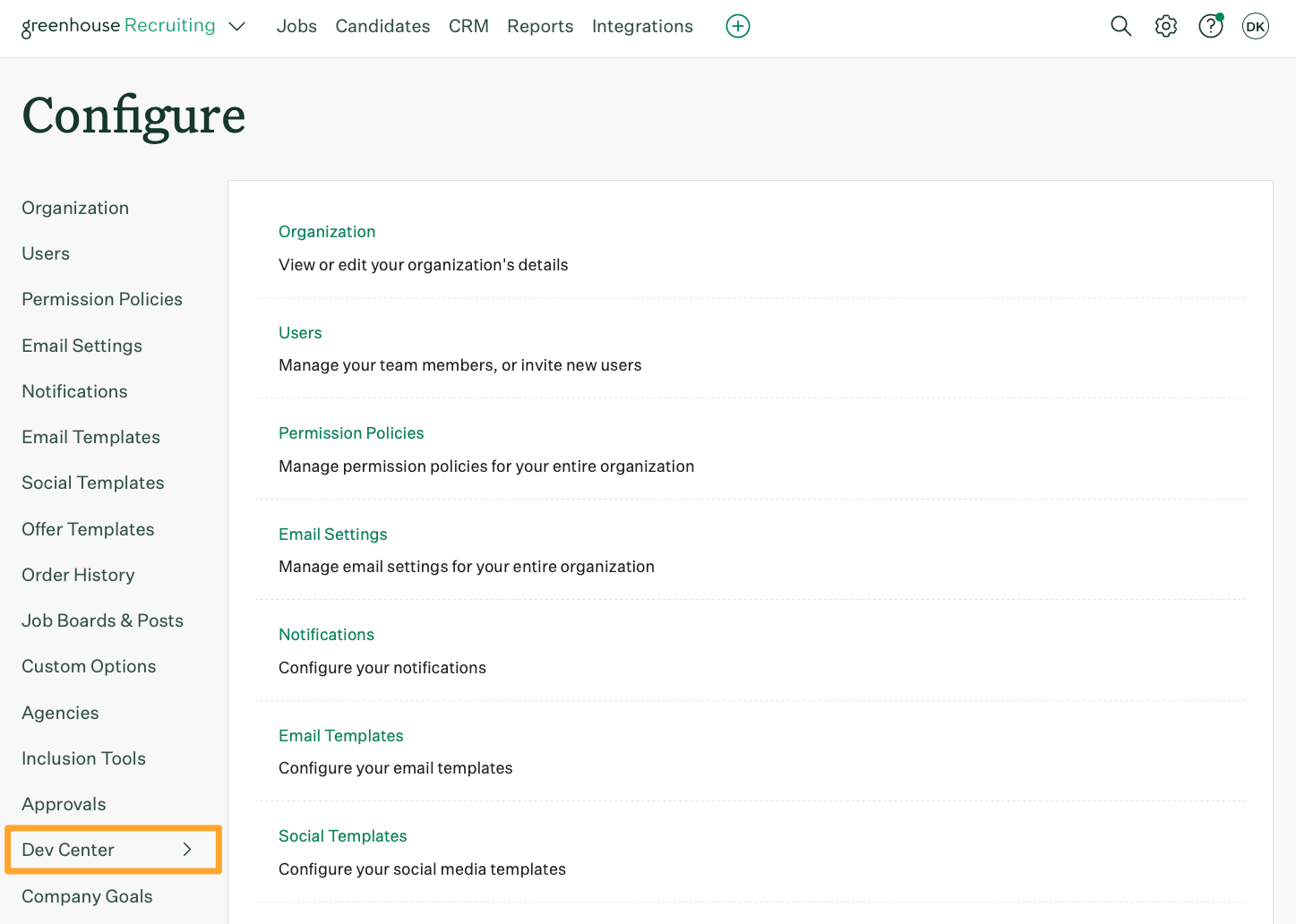
Click API Credential Management.
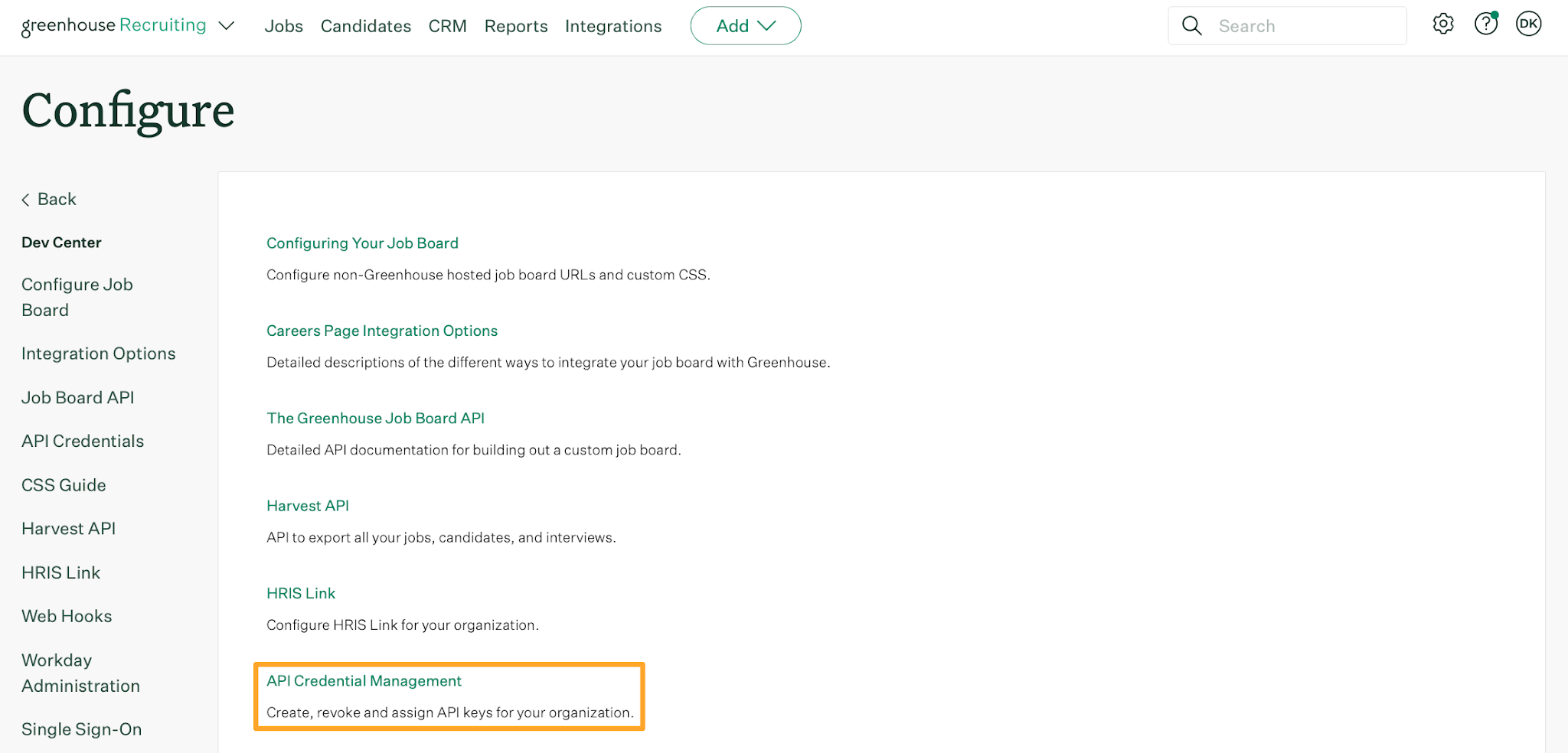
Click Create New API credentials.
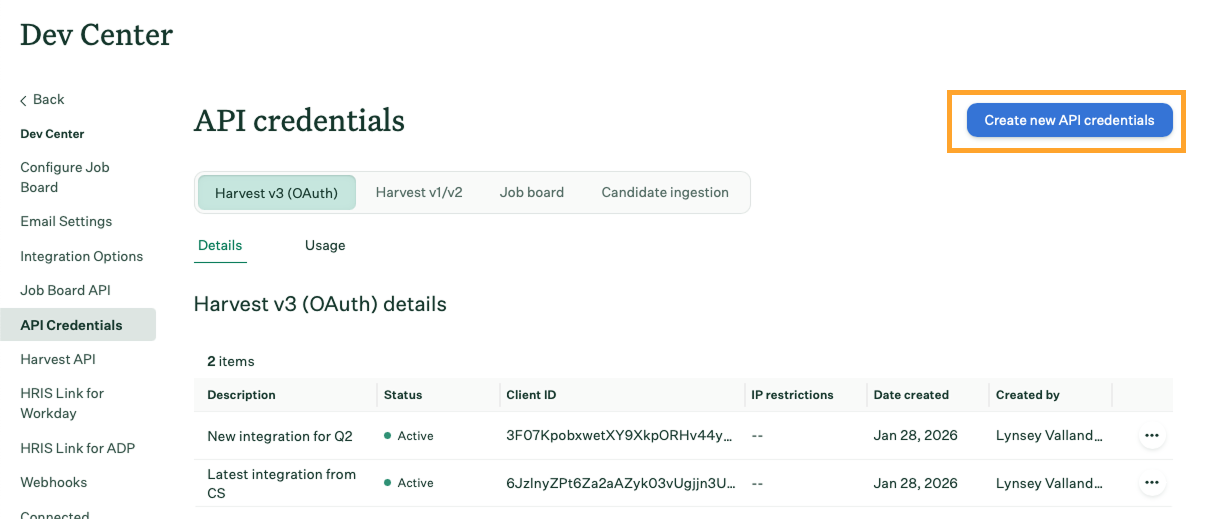
Make the following selections:
API type: Choose Harvest v3.
Partner: custom integration, select custom.
Description: Give your credentials a descriptive name.
When finished, click View and store credentials.
After the credentials are created, click Copy. Paste the credentials in a secure location and then click ‘I have stored the client credentials’.
Note: You can't access client secret again after clicking I have stored the client credentials. If you lose your API secret and need to access it later, you must create new API credentials, provide it to the integration, and then revoke access to the original.
When finished, click Save.
Confirm required permissions:
harvest:candidates:list
harvest:offers:list
harvest:departments:list
harvest:jobs:list
Click Save to complete the setup.
Connect Brilliant
After we have enabled the Greenhouse automation for your account, your Brilliant team will reach out to let you know you're ready for the final leg of your Greenhouse automation setup. You can now integrate with Brilliant by following the steps below:
Login to Brilliant using your email address and password.
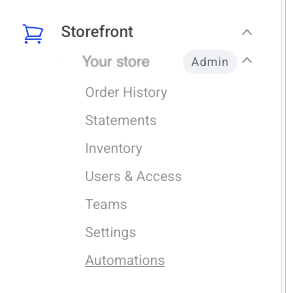
On the lefthand side of the page, navigate to the Automations page of the store you wish to connect the automation to via Storefront -> Your Store to Connect -> Automations.
Find the Greenhouse automation you requested from Brilliant and click "Connect". From here, you will be brought to a new tab where you can provide authentication and configure the automation.